Welcome to the Summer EdTech Challenge! Summertime is a wonderful time to be a teacher! It's the perfect time to recharge your batteries, catch up on trends in education, read for pleasure, and learn new things. How about taking the opportunity to learn new tech skills or try out new tools and strategies? Each Monday this summer I'll post a simple tech challenge, something you can do between dips in the pool and binge watching your favorite TV show. These challenges are practical, easy to implement ideas to help you develop your tech skills and start next year off on the right technology foot!
YouTube was created by a few PayPal employees back in 2005 as a way to upload and share videos. During the summer of 2006, YouTube was one of the fasted growing sites on the web with 100 million video views per day in July. With YouTube only being 11 years old, that means students in elementary school and entering middle and high school don't know what the internet (and their life) was like without it! They are often referred to as the YouTube Generation or Gen C - the group that cares about creation, curation, connection, and community.
Enter the teacher. In order to engage students and bring relevance and meaning to their learning activities, videos can often be embedded within the lesson or used as a hook to get students interested. There are many ways YouTube can be used in the classroom - and not just as filler. Check out my post 7 ways to use YouTube in the classroom for some cool ideas.
Your EdTech Challenge this week is to read through those blog posts about integrating YouTube. Then explore YouTube, finding videos, creating playlists, and subscribing to channels to supplement your classroom. Share in the comments what you've discovered. I'm always looking for interesting videos and YouTube channels to help with my teaching!
I've been working with a few high school science teachers that use video in their classroom to help students understand some complex science topics. Video is a great way to do this - after all we live in a video generation. YouTube reports 300 hours of new video are uploaded every minute. Leveraging video lets you bring in multimedia and simulations to your lessons as well as take your students to places they may never get to otherwise.
While working with these teachers we explored one of my new favorite tools: EDpuzzle. EDpuzzle is a really cool tool that lets you take existing video and embed your own voice, comments, and even quizzes. Plus it's entirely FREE! Here's a one minute overview.
Creating an account is super simple. Click on the Teacher button and login with your existing Google or Edmodo account or create an EDpuzzle account from scratch. Using your Google or Edmodo account gives you the advantage of being able to access class rosters and other resources directly from those accounts.
My Classes
Your first task after signing in is to create your classes. If you signed in using Google or Edmodo you can import your existing classes. Otherwise click the Add Class button and follow the prompts.
Find Videos
The next step is to find the video you want to use. Click the Search tab and choose your favorite source for videos. You can also use the Upload button to upload your own video or video you've downloaded from another source.
After you find a video, hover over the thumbnail and either click Use it to start adding your content, or click Copy to add it to your My Content tab and edit it later.
Create your video-lesson
Once you are in your video its super easy to create your lesson. Once you are in edit mode you'll see four buttons across the top of the window.
Crop - lets you use only a section of you need. No need to force your students to sit through an entire 15 minute clip, just crop to the relevant section. To crop, just drag to start and end points. Audio Track - is used if you want to use your own voice on the video instead of the embedded audio. If you use this option you have to record audio for the entire video clip. Click the microphone button and the video plays at the same time you are speaking. Audio Notes - lets you record your own commentary at a certain point of the video. Drag the playhead to the point in the video and click the microphone button. You can have multiple audio notes throughout your video. Quizzes - this is probably the best feature of EDpuzzle. Click on the point in the video where you want to embed a quiz and click the question mark. You can add an open-ended or multiple choice question, or embed your own written comment. The question editing box gives you basic formatting tools as well as the ability to embed links and images into the questions. When students are watching the video, it automatically stops at the quiz and students are forced to answer it before continuing on.
Assign
Click the Finish button in the upper right-hand corner. You'll be prompted to select a class to assign the video to as well as a few other awesome features: You can disable skipping so that students can't skip important content. You can also assign due dates to videos.
When you click the Send button it assigns the video to your EDpuzzle class. If you linked your Google Classroom or Edmodo accounts, you need to take the additional step of clicking the Post button and it will appear in the class stream.
EDpuzzle is a must-have tool for any teacher that uses video in their classroom. I love the ability to embed quizzes to hold students accountable for the video content, as well as the ability to disable skipping.
What are some ways you can think of to use video in your classroom? Let me know in the comments below.
Today I joined Karl Gustafson (@lvmachead) to present at the CCSD Google mini-conference at Roy Martin MS. Our topic was using YouTube in the Classroom. Our goal was to share practical ways to use videos to engage students. We also shared ways to find videos and collect them in playlists for easy access
I've embedded the presentation below. The presentation is mostly for resources to use back in the classroom. The workshop itself was a hands on workshop, working through many of the techniques described here.
YouTube currently has over one billion users, with those users watching over six billion hours of video each month. 300 hours worth of new video is uploaded every minute. It's estimated that the average time spent on a session by mobile YouTube users is 40 minutes. (source) That's a lot of video time! Clearly video is a big thing and isn't going away soon.
How can teachers harness the power of video? James Sanders has created a presentation 10 Ways to Use YouTube, that has given me a lot of ideas. I've shared some of them here and added a few of my own.
1. Hooks and discussion starters
Start a lesson or discussion with a video
that grabs your students' attention. YouTube videos are great for
engaging your students, bringing in different perspectives, and
encouraging students to consider new viewpoints. This Hot Wheels video could be used to introduce a lesson on the laws of motion or a physics lesson.
2. Critical Thinking
Visual imagery produced by videos is a great way to get students thinking critically. This commercial was produced by Honda to advertise their cars. After viewing it let them play with critical thinking. What's the bigger idea here? What's Honda trying to express about its company? What can the student infer?
3. Exam Review
Use videos to help students review material or study for a test. Create a video with "flash cards" to help students practice vocabulary the night before a big test. Here is one example of using YouTube to review for exams.
4. Flip your classroom
Use video to flip your classroom. Have the students watch a video as homework to understand the basics of a concepts. When they come in to class, expand on their learning experience by applying the information they learned. After watching this video on tectonic plates at home, students could create a model to show movement.
5. Bring the world to your classroom
Bring the world to your students. Many will never have the opportunity to see far away places, experience unique environments or see experiments in action. Use videos during a lesson or unit so students can see what something is actually like, rather than just reading about it.
6. Link videos
Within a video's settings you can add links to other YouTube videos that allow you to create engaging interactive experiences. Here's one that was professionally created.
Here's another one teacher James Sanders put together to help his students learn about chemical reactions. James shows how to do this here.
7. Create interactive videos
Use a service like Edpuzzle or Zaption to create interactive videos. With these services you can embed your voice, add questions, keep students from "skipping" through the video, and gather student viewing data. This is an easy way to hold students accountable for the videos you share with them.
Jim Sill leads many workshops on harnessing the power of video in the classroom. He has compiled a list of creative ways teachers have used videos - everything from cultural bias to risk taking to metaphors. Browse through the list for some very creative ideas. https://sites.google.com/site/mistersillytintheclassroom/footprint/hook-em-playlist
Do you use video in your classroom? What are some ways you can engage students through this medium?
With over 300 hours of video uploaded every minute, YouTube is a rich source of video any teacher can use in their classroom. Subtract all the cat videos and you've still got a sizeable chunk of video to sift through to find the perfect one for your class. Luckily, YouTube provides some search filters to help you narrow down those search results. Playlists and channels are great ways to curate videos and put them in manageable lists. These lists can be shared with students so they aren't overwhelmed by all the choices either. But you still have to populate those playlists and find those channels. Here's an easy way to find the perfect high quality video for your lessons. After entering your search term in the YouTube search bar, click on the Filter drop down menu. It's located right underneath the search bar. You can choose to see only HD quality videos or those shot in 3D. Searching by Short will help you find videos of the perfect length for your students. Searching by the date will help you find the most current ones.
You can even save yourself a few clicks by including any of those filters in your search terms. For example, add a ", HD" to find only HD videos.
YouTube is the second largest search engine in the world. Using these little tricks, you'll soon be finding your perfect video like a boss!
YouTube has a ton of great videos that can be used in the classroom. Videos can be used to spark discussion, model a concept, hook students, provide real world context, or make lessons more engaging for visual learners. Finding and bookmarking all those great individual videos can be time consuming. Luckily, YouTube has an easy way of curating all those videos into one location. Playlists are groups of videos curated by you. They provide a convenient way to create groups of videos that you want to refer to during a lesson. You can even share those playlists with students as a resource for them as well. In order to create playlists you must first be logged in to your YouTube account, which is the same as your Google account.
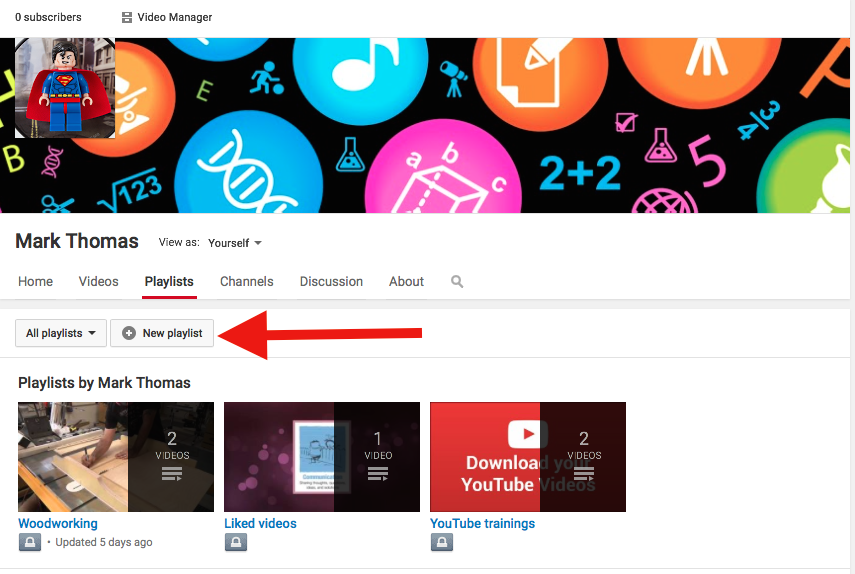
Playlists can be created two ways. The first way is right from your YouTube home screen. Click on the Playlists tab and then click the New Playlist button. Enter a name for your playlist and set it to Public.
When you find a video that you want to keep, click the + button and add it to a playlist. You can also create a new playlist right from this screen.
Finding playlists
Other teachers may have already created playlists full of great content. You can find public playlists searching right in YouTube. In the search bar enter in any topic you are looking for. In the search results click the Filter drop down menu and select Playlists. This will show you only playlists with that search term in the name.
Instead of clicking the drop down and selecting a filter, you can include that filter right in your search by typing a comma and the filter, as shown here. The results also show you how many videos are in that playlist.
You can view individual videos and add them to your own playlists. You may even like the entire playlist and trust the author to curate quality videos. When viewing the playlist just click the +Save button and that playlist will be added to your Playlists in your guide on the left hand side. Every time the author adds another video, you'll automatically see it in your saved playlists. Videos are a great tool to engage students in content. What are some ways you use video in your classroom?
YouTube lets you watch a variety of videos on practically any topic imaginable. Many users produce a whole series of videos on a particular topic. This series of of videos is called a channel. A channel on YouTube is the home page for an account. It shows the public videos that person has uploaded. Personally I have become interested in woodworking and successfully taught myself how to build a dresser for my daughter. Every time I had a problem I turned to YouTube to see possible solutions and work arounds. In those searches I came across a YouTube channel called The Wood Whisperer that had a lot of great tips. I quickly subscribed to his channel so I could see when he created new videos and catch up on older videos. As a teacher you might discover channels that interest you and your subject area. Maybe you find someone who produces awesome math videos that are entertaining and explain math concepts in an easy to understand way. Or you teach a foreign language and find a channel that helps students understand basic vocabulary. Subscribing is a great way to save those channels in one place and never miss an new video. Subscribing to a channel is easy. In order to subscribe, you have to first be logged in to your YouTube account. Then simply click the
button anywhere you see it. It's generally found under the video and to the left, near the video's author. The subscribe button also shows you how many people have also subscribed to that channel. The higher the number, the more popular that channel is. When you subscribe to a channel, it's added to your subscriptions list in your guide on the left hand side of your YouTube page.
Finding channels to subscribe to
On your home page you'll find channels recommended to you based on your YouTube browsing history. Since I was looking up woodworking videos, I was recommended a few channels that might interest me. If I like the channel, I can click the button
right there or check out a video first.
Another way to find channels is to search for them. In the YouTube search bar enter in any topic you are looking for. In the search results click the Filter drop down menu and select Channels. This will show you only channels with that search term in the name.
Instead of clicking the drop down and selecting a filter, you can include that filter right in your search by typing a comma and the filter, as shown here.
Keep in mind that these filters only include channels with that search term in their title - not individual videos with that word in the title. After searching for a channel you can click the
button to subscribe right from the search results. Subscribing to channels is a great way to follow YouTube authors that you really like. What are some of your favorite channels?
It seems like everyone has a lesson, how-to, demonstration, or other exciting video that they've posted on YouTube. These come in handy when you are teaching a concept and need a little additional information to enhance that lesson. Unfortunately in my district YouTube is blocked. But with the help of the Internet you can download that cool video at home and still show it during your lesson.
Ideally, to get through the district filter the YouTube video should be tagged for educational use. You can usually contact the author of the video and ask them to add that tag. You can also submit the video through YouTube EDU's submission form.
If you are unable to do that, or need it quicker than the email back and forth, you can use a site like http://www.keepvid.com to convert and download the video. Best of all-the site is free! You will need to follow these steps at home, since you still need to access the YouTube video.
To start you need to navigate to the YouTube video you want. Copy the URL for that video from the address bar.
Go to http://www.keepvid.com and paste in that URL in their search bar. It should look something like this.
Then click the Download button to the right of the search bar. Don't click any Download buttons below the search bar - those are ads and you'll end up downloading some junky software.
After click Download you may need to accept a security warning about Java. It's okay to Trust it - I've done this hundreds of times without any problems.
After the Java applet runs you'll be presented with a choice of file formats. Always go with the mp4 file format. The 480p is in the 4:3 aspect ratio and a smaller file size. This is usually good enough for my needs. 720p is in the 16:9 aspect ration and a much higher quality (and file size).
Click the link for the file format you want and it will download the video to your computer. Transfer that video to a flash drive and take it to school!
Keep in mind that the video is not yours to keep. I only offer this tip as a way of getting around the district filter for content you know is acceptable and useful in your class. Once you've shown the video be sure to delete it and also give proper credit to the author!
 Welcome to the Summer EdTech Challenge! Summertime is a wonderful time to be a teacher! It's the perfect time to recharge your batteries, catch up on trends in education, read for pleasure, and learn new things. How about taking the opportunity to learn new tech skills or try out new tools and strategies?


 Posted with Blogsy




 button anywhere you see it. It's generally found under the video and to the left, near the video's author. The subscribe button also shows you how many people have also subscribed to that channel. The higher the number, the more popular that channel is. When you subscribe to a channel, it's added to your subscriptions list in your guide on the left hand side of your YouTube page.


