Friday, January 16, 2015

Digital Publishing Made Easy Webinar

Earlier this week I co-presented a webinar on digital publishing for K-12 teachers. My fellow presenters and I discussed why digital publishing is important in today's education. We then shared a few tools that can be used by students for digital publishing. We focused on iPads because of their flexibility and variety of tools. We also focused on web tools for those schools that don't have access to iPads.

The anchor standards from the Nevada Academic Content Standards for writing states:
Use technology, including the Internet, to produce and publish writing and to interact and collaborate with others.
In kindergarten it starts out very simple.
With guidance and support from adults, explore 6. a variety of digital tools to produce and publish writing, including in collaboration with peers.
As you move up the writing strand it becomes more complex in the secondary grades.
Use technology, including the Internet, to produce and publish writing and present the relationships between information and ideas efficiently as well as to interact and collaborate with others.
From just those simple standards we can see how important digital publishing is. It allows for student creativity, engages students more than paper and pencil assignments, and provides for an authentic environment and audience.

A playback of the one hour webinar is available at this link or by clicking the picture below.

Read More »

Monday, January 12, 2015

Edmodo Mini Lessons

Showing teachers the potential of Edmodo and how easy it is to post quizzes, assignments and discussion is the beginning part of training. However, teachers sometimes find it difficult to actually use Edmodo long term or in effective ways with their students. It's always nice to hear fresh ideas on how to use Edmodo.

Edmodo has some great examples of mini-lessons they posted on their site. These are actual ideas teachers have used with their classes. Here are a few ideas from that post.


  • Students write a definition for foreshadowing, watch a short film looking for evidence of foreshadowing, and then posting their observations.
  • Embed examples of book trailers for students to view. Create a folder with links to resources. Have students create their own book trailer and post it on Edmodo.
  • Link a video documentary or video commentary about a current or high interest event from any news magazine website. Students must then write a paragraph that either supports, opposes, or offers a new argument.


You can check out the full post at https://support.edmodo.com/home#forums/20837385-mini-lessons

I'd love to hear how you use Edmodo with your classes. Leave a comment below and let me know!
Read More »

Thursday, January 1, 2015

My Goodreads Reading Challenge confession

I did it! I met my Reading Challenge and read 305 books in 2014!

Back in May I wrote about the Goodreads website for tracking books I've read. Soon after creating my account and writing that post, I discovered that Goodreads had an annual reading challenge. Knowing that I listened to books during my morning jog, read at night, and read many picture books to my kids at bedtime, I set a goal to read 300 books in 2014. I reached that goal, but now I'm wondering if it was a good or accurate goal.

I discovered a lot of positives from having such a high goal. I was constantly on the look out for picture books to read to my kids at bedtime. This goal probably motivated me to read to them more than I would have otherwise. Along the way we made new book friends, discovered authors, illustrators, and characters we loved, and explored a wide range of books. I also made sure to pick up a new book for myself each time I finished one. I rarely went a day or two without some book that I was reading.

The Elephant and Piggy books quickly became our hands down favorite books. When we visited different libraries we were always on the look out for titles we hadn't read yet. We loved looking at the inside cover illustrations to find the pigeon, from the series that introduced us to author Mo Willems. We even discovered the pigeon hiding in other books by Mo Willems.

We did several author studies because of the first book we discovered by an author (Mo Willems, Peter Brown, Amy Krause Rosenthal, David Shannon, Jan Thomas, Melanie Watt, David Wiesner)

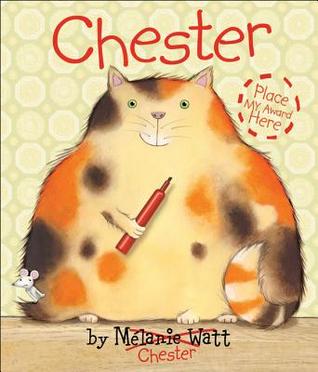
We absolutely loved Chester by Melanie Watt. It was actually the book that prompted us to start checking out the back flap to see who the author and illustrators were. Imagine our thrill when we discovered that there was another book about Chester! We laughed all over again!

Following Papa's Song has pictures of the author's other books on the back flap. When they saw those pictures my girls insisted that I check the library website to see if we could check those books out next.

I used the Goodreads app on my phone to record the books we read and would rate them right away. My kids asked what I was doing and I explained why I gave a book the number of stars I did. More than once, after reading certain books my 2nd grader sighed and said, "Too bad we can't give 6 stars!"

Many times I would come home from the library with dozens of books and was all excited to read them to my kids right then! Sometimes they were in the mood, other times not so much. One thing I discovered, though, was that if I could corral one of my kids (usually my second grader) into letting me read a book to her, soon the others would stop whatever they were doing and join us on the couch. If someone was in a sour mood because life just wasn't fair, it usually took only a couple of pages before they were laughing and joining in on the conversation we had about the book.

At the beginning of December I still had almost 100 books to read. So I started loading up on picture books (I maxed out my library card as well as my daughter's), reading 4-5 at a time to my kindergartener. Sometimes I would read only one and then she would bring another one, and then another one, until we had read all that I had checked out from the library.

Buyer's Remorse

With all of these good experiences we had with reading, why, then, am I wondering about this goal? Several things about the experience have left me wondering if I went about it the right way.

I listen to audio books while jogging and in the car. I often have 5-6 sitting in my iTunes waiting their turn. I found myself choosing audio books that were shorter because I knew I would finish more of them. They were on my to-read list anyway and I already had them ready to sync, but I was prioritizing my reading so that I would finish books sooner and reach my goal, rather by what interested me at the moment.

In December I was in a rush to finish the final 100 books. I would check out books one day, read them, and return them to the library the next day. I believe that, by doing this, I robbed my children of the opportunity to relish books over and over. Earlier in the year I would have library books for days and days. My kids would pick them up several times to look through the pictures again or to read it to themselves. On occasion I was asked to read one more than once. But in the end, I was so rushed to check out new books that they missed out on this opportunity.

I felt rushed in the end. I was reading to meet the goal, not to purely enjoy the books. I (and my children) did enjoy the books we read. We relished them as we read and I was able to find a ton of excellent books, both because of the illustrations and because of the stories as well. There were very few that we rated three stars or less on Goodreads.

Out of the 305 books I was able to read in 2014, less than 50 were for my own personal enjoyment. Again, I read some pretty awesome books (The Ascendence Trilogy, Razorland, Nathaniel Fludd, Beastologist, Maze Runner, Unbroken), but the majority were geared towards my kids. Don't get me wrong, I loved reading to my kids and I loved the quality and range of books we shared. But to reach my goal of 300 books I had to focus more on them rather than me.

2015 Challenge

I think for 2015 my new reading challenge will focus on myself. Rather than make such a high goal that forces me to rush through books, I'll make a smaller goal that allows me time to enjoy each story. I'll choose more adult books as well (Jack Reacher is on my to-read list anyway!). If I pass my goal because of the picture books I enjoy with my kids, then so be it! 60 books sounds about right! And luckily the library is open tomorrow!

Read More »

Thursday, December 18, 2014

Adding students in ThingLink: The Nightmare Begins


Today was the third day of working with a 3rd grade class using ThingLink. The first two were a failure because I spent the entire time straightening out student logins. It wasn't until this third session that students could start working on their project and even then there were a few problems. The student management component of ThingLink needs to be rethought.

At first blush, setting up student accounts in ThingLink seems to be straight forward. First you need to make sure you have an education account by logging in through the ThingLink Edu page. After your account is set up you'll have a Students button that takes you to a screen where you can create groups for each of your classes. Within each group you then have the ability to create student accounts or have students with existing ThingLink accounts join your group. This is where the process starts to fall apart and the nightmare I experienced began.

The first choice lets you create student accounts, supposedly without using email addresses. The teacher types in the student names and clicks Register Students. Student accounts are then created using an internal email format which looks like random characters. For 3rd graders it was impossible to remember. All contact info for the students, including password recovery links, are sent to the teacher's email. Passwords are also randomly generated and included a mix of upper and lower case letters - again very difficult to remember. The username and password only appear on the screen one time, so if the teacher doesn't print them out she will not have that information and will need to reset their password manually.

Because it was so difficult for students to type in their username and password we ended up using our entire class period trying to get logged in. I thought a better solution would be to switch student accounts to their local school email address, which luckily our district allows. However, in doing so the teacher then loses control of resetting passwords, since all those requests go to the student email address. Nonetheless, I tried to teach the students to go into their account and change their username to their school address and the password something easier to remember. This took another entire period to accomplish.

Other options for creating student accounts both require students to create their own account first using an existing email address and then use a code to join the class. This works only if the students have an email address and it doesn't offer the teacher any management abilities over passwords.

A much better solution would be a model similar to how Educreations or Edmodo creates student accounts. Students are not required to have email addresses and teachers have some control over username and passwords.

ThingLink is an awesome resource and students were very engaged when we could finally get them logged in. But the company really needs to rethink how student accounts are created and managed or teachers may abandon it out of frustration.

Read More »

Tuesday, December 16, 2014

Formative Assessment Toolbox: Socrative

Formative assessments are a vital tool for any teacher to give feedback to students and/or guide their instruction. They should not be used for grades. In the digital classroom there are many excellent choices, including Socrative.

Socrative is a student response system that runs on tablets, smartphones and the web. Teachers can survey students, ask formative assessment questions, or facilitate an online discussion. Data is live and in real time, providing immediate feedback to the teacher and students that can drive instruction and class discussions.

Socrative is completely free. There is a separate app for teachers to prepare the questions and for students to answer. Apps are free and support up to 50 students logged in at one time. Teachers can also create at t.socrative.com and students participate at m.socrative.com.

There are several reasons a teacher might want to use a digital tool for formative assessments instead of traditional formats. 
  • Its interative and engaging
  • It provides immediate feedback
  • It is paperless
  • It saves time when grading assignments
  • Students can use Socratic on any device, on any platform. 
Check out this quick overview video to get an idea of how Socrative works.


Teacher App

There are four types of questions teachers can ask, all from within the teacher app.

  1. Start Quiz - Tap this button to select a prepared quiz from the list of saved quizzes.
  2. Quick Question - Tap this button and choose Multiple Choice, True/False, or Short Answer. Ask the question out loud and students will respond on their app. Answers will appear in the form of bar graphs. With Short Answer questions you can type the question and have it appear on the students screens and have students include their name with their response. When done, tap the Finish button.
  3. Space Race - Tap this button to create a game style quiz where students compete in teams or against each other. Select a saved quiz for questions and choose the number of teams. As students answer questions correctly the space ship moves across the screen.
  4. Exit Ticket - Tapping this option will send three preset questions to the students: How well did you understand today’s material? What did you learn in today’s class? Answer the teacher’s question.
Tapping the Manage Quizzes button takes you to a screen where you can create, edit, and import quizzes. The Socrative Garden blog has a list of teacher generated quizzes you can import right into your list of quizzes! You can also view and download reports on any type of quiz. 


Student App

When students first log in they enter your room number. They will see a short message as they wait for the quiz to start. As each question appears on their screen they select their answer and tap Submit Answer.

Integration Ideas

  • Use multiple choice question as a likert scale: Do you agree with the main character’s actions? A = strongly disagree, E = strongly agree
  • Use the short answer option to create fill-in-the-blank questions on subject-verb agreement.
  • Include pictures outlining a state’s shape as a states quiz.
  • Have a Space Race against another class within your school? Against another class in the US?
  • Use short answer to ask “Please explain your answer”.
  • Check for understanding of vocabulary by using short answer format to have students create a sentence using the vocabulary word.
Check out http://garden.socrative.com for more creative ways to use Secretive with your class.

More detailed help, including video tutorials, is available in the Socrative Help Center.

Download the Tech Integration Challenge for Socrative and see if you are up to the challenge!


Read More »

Monday, December 15, 2014

App Criteria: Choosing a good iPad app

As a Digital Learning Coach I've been working with several schools as they define what they want to do with iPads. Sadly, most of what I find on their iPads is what I consider to be junk, useless, and educationally inappropriate apps. It seems that previous tech folks, and in many cases, teachers, have simply installed the free app of the day or the latest "Top 20 Apps for Education" without really looking at the app and evaluating what it does. This results in the iPad becoming a toy or babysitter in the classroom.

My philosophy on iPads and apps is based on the SAMR model. I find this model to be very useful in helping to define what I want technology to do. Using the iPad to do something that's just as easily done on paper and pencil doesn't seem like a good use of technology. To me, the iPad should be used for learning tasks that could not easily be done without the iPad. This blog post by Jennie Magiera articulates my thoughts on this very well.

When looking specifically at apps, the SAMR model becomes even more important. Using a commonly found app such as Math vs Zombies as an example, you can see how how this plays out. The app is simple enough: users answer basic math problems in order to kill off the attacking zombies. Students have to solve math, so it's educational, right? Students are learning, right?

The answer is no, they are not learning, for many reasons. The app doesn't track progress for multiple students, the problems are not customized for the student's needs, and there are no math skills actually being taught. This app really only hits the lowest levels of Blooms Taxonomy and the Substitution level of the SAMR model. Math facts could just as easily be learned with a basic set of flash cards.

A much better choice would be to let the flash cards to their job and use the iPad to redefine the learning and the teaching. Use creation apps so students can demonstrate what they are learning and reach that higher level of Bloom's Taxonomy.

What to I consider, then, to be a good app? After thinking about this for awhile, here is my criteria for what I consider to be a good educational app:
  • can be used in multiple content areas
  • can be used in multiple grade levels
  • allows the content/project to be transferred off the iPad, either to a website or through a Dropbox type service
  • can track the work of multiple students, either by saving multiple projects or through student logins
  • engages students at higher levels of Bloom's Taxonomy and the SAMR model
This is just my thoughts on what makes a good app and I've listed in a previous post what I think are awesome apps that fit the above criteria. I'm constantly adding to the list (ThingLink!) as I come across new and exciting tools.

Do you agree or disagree? What do you think makes an app suitable for the classroom?

Read More »

Thursday, December 11, 2014

Edmodo Part 16: Link Your Google Drive

This post is the next in a series of posts to help schools and teachers that I work with get started with Edmodo.

If you use Google Drive you can link it to your Edmodo Library. With this method you can store and organize your files in Google Drive and then share them with your groups. This could save you a lot of time and keep all your resources in one location.


  • Click the Library icon.
  • Select Google Drive.
  • Click the Connect with Google Drive button and you will be prompted to sign in to your Google Drive Account.
  • Select Accept when prompted about Edmodo permission to access your Google Drive. Now you can access your Google Drive files just like you can any other resources in your library.
Students can also link their Google Drive account to Edmodo. Students don't have a Library icon, but instead have a Backpack icon. Otherwise the process is the same.


You can find more detailed instructions on using Google Drive in the Edmodo help files.

Read More »