Showing posts with label website. Show all posts

Saturday, July 22, 2017

#mysteryskype interactive maps with mapchart.net

One of the necessary tasks when doing Mystery Skypes is to track which states your class hooks up with. In my classroom I put up a poster size map of the United States and strung little papers to each state we had Skyped with. Students referred to it often to determine what states we might still be Skyping with.

The problem with the poster was that it took time to update and could only be seen while in the classroom. Parents couldn't see it and neither could my admins. I looked for a few different digital solutions so I could post the same info on our class website. I finally came across mapchart.net, which turned out to be an easy-to-use solution and very useful for many other applications as well.

Mapchart.net is a mapping creation website. Its free and very simple. The user selects a map, color codes it, then exports the map as a jpg file that can be used anywhere. Map data can be saved and modified later.

The steps I outline here are the ones I used to create my Mystery Skype map, but the steps are the same for any map you want to create.

First click the United States drop down menu and select States.
The 3 easy steps to create a map are on the left side of the screen (or the bottom if it's a very wide map). Start with Step 1 and choose a Fill color. I selected only green because I only wanted to show one level of coloring (the states we Skyped with). If I were to compare different areas, regions of the United States for example, I would need to select multiple colors. There are other options to choose as well.
In Step 2 type a label for each color that appears on the map. Since I didn't want the user to be confused with the default color I added a label even though I was only using one color.
Step 3 is for downloading the map and saving it for later use. To download a jpg file click on Convert to Image and then Download. It saves a jpg you can use anywhere - class website, in Twitter, email, etc.
To save the map data to update later click on Save-Upload Map Configuration. On the next screen click the Save Map Configuration button and the map data is saved as a simple text file.
 
After the next Mystery Skype its time to update the map. Open the text file you downloaded earlier, copy all of the text, and paste into the bottom half of the screen shown above. Your earlier map configuration will appear and you can add the additional states or make whatever edits you need.

As you can see, this is an easy-to-use solution for tracking your connected states. I always sent out this updated map to the parents so they could be reminded of the friends we made during our Mystery Skype sessions. What methods do you use in your class?


Read More »

Monday, August 22, 2016

Summer EdTech Challenge #12: Student show offs

Welcome to the Summer EdTech Challenge! Summertime is a wonderful time to be a teacher! It's the perfect time to recharge your batteries, catch up on trends in education, read for pleasure, and learn new things. How about taking the opportunity to learn new tech skills or try out new tools and strategies?

Each Monday this summer I'll post a simple tech challenge, something you can do between dips in the pool and binge watching your favorite TV show. These challenges are practical, easy to implement ideas to help you develop your tech skills and start next year off on the right technology foot!

I am a firm believer in giving students choices when it comes to presenting what they know. For many years it seemed that teachers had students create PowerPoints as a way of sharing information. But there are so many options available today that provide a much better experience in creating and presenting. Many of these tools are free, work cross platform, and sync across websites and mobile devices.

I've blogged about many tools and have many favorites. Some tools are linear in nature, just like PowerPoint, while others allow the user to choose the order they consume the information. When we provide students with a variety of tools, they can pick the tool they like best for the task at hand. Some might prefer the visuals of Haiku Deck, while others want to make a quick video in PowToon or iMovie.

The table below provide links to my 9 favorite apps for student presentations. Some links will take you to my reviews, where available. The review may be just for the iPad app, but most also have a website that can be used on desktops, laptops, and Chromebooks. Other links will take you to other websites with more information. This list is by no means definitive - I'm still learning about great tools myself! You may want to check out Student Presentations: Moving Beyond PowerPoint for some other ideas and resources.

Linear
Haiku Deck Google Slides Prezi
Visual
ThingLink Spark Page Smore
Video
Spark Video iMovie PowToon

Your EdTech Challenge this week is to pick a presentation app, learn about it, and pick one of your learning activities where students will use that app. You are not limited to these 9 apps - let me know if you find another great one! Don't forget to come back to this post and let me know what app you picked and how your students will use it.

Read More »

Sunday, July 3, 2016

Cool and useful website: PlayPosit

More and more teachers using video in their classroom for good reason. Videos are engaging, are visual, and can really help to explain concepts or illustrate a point. Flipped classrooms are becoming more and more popular and generally utilize videos to teach concepts prior to students coming to class. The problem most teachers find with videos is holding the students accountable for what they see.

Enter in PlayPosit. PlayPosit (formerly known as EduCanon) is an online learning environment where teachers create interactive videos with embedded questions and comments. These interactive videos are referred to as "bulbs". When you grab a video from a source such as YouTube, you can stop the video at any point and insert a question. When students watch the video and get to that point, they must answer the question before they can continue on. The correct answers are graded and the teacher can view the data to determine who watched the video and how well the understood the questions - holding the students accountable for the video viewing.

PlayPosit is free with a few limitations. The premium version lets teachers choose more question types, download worksheets of the questions in the bulb, and advanced cropping. I don't believe that these limitations inhibit the power of the site, though.

To get started go to https://www.playposit.com/join and sign up with a new account or use your Google login, which also gives you Google Classroom integration.

Tap the Design tab and enter the video URL or search through videos for the topic you want. There are also many educational YouTube channels that you can browse through to find the perfect video. You can preview any video or click Use to select it. You can also see other pre-made bulbs for this video.

Click Crop Video and you can drag from the beginning or end to select only a clip.

Play the video and position the cursor where you want to insert a question. Click Add Question and select a question type. The only question types available with the free version are Multiple choice, Free response, and Reflective Pause. Fill in the questions and possible answers. There are basic text formatting tools as well as the ability to upload images and record audio in both the question and answers. Unfortunately it appears that you can only insert one question at any given point.


Before you can assign bulbs to your students you need to create classes and enroll students. Students will create their own PlayPosit account and then join your class using the class code. If you use Google Classroom you can import your classes and rosters. Go back to your Dash and click on Fill Out Profile. Scroll to Google Classroom Sync and click the icon. A screen will appear where you can select which class (or multiple classes) you want to import. Scroll to the bottom and click Save Google Class Room. After refreshing the screen you'll see your students listed.

Click on the Bulbs tab to see all the bulbs you have created. Click Assign on the bulb you want to use and Assign next to the class. Pick a due date for the assignment.

Students can view the videos on the website or through the free iPad app. The app is only for students to view the videos. Teachers cannot use the app to create the bulbs.

After students have completed the bulbs, click the Monitor tab, select the class, and then the assignment to see data for the assignment.

PlayPosit has some great features and is super easy to set up and use. It's comparable to other interactive video platforms such as EdPuzzle. I would love to hear your thoughts and ideas of how you can use a platform like PlayPosit. Let me know in the comments below.


Read More »

Saturday, July 2, 2016

Reading log alternatives: a comparison

I never really thought about reading logs until last year when I read a few posts by one of the bloggers I follow, Pernille Ripp (@pernilleripp). She has written a few posts on the subject, pointing out how reading logs actually discourage students from reading. Curious about this whole idea, I searched the topic and found that many other educators feel the same way. They assign reading logs only because they have to or its the way its always been done, not because they actually help students. In fact, a new post just this past month, In the Classroom: The Problem with Reading Logs and What I Did About It, caught my eye and brought this topic to the forefront of my thoughts again.

After reading her thoughts on it and examining my own habits as a parent, I realized that reading logs probably aren't the best way to hold students accountable. I read with my children every night, but I'm really bad about making sure it gets recorded in their log. In fact, I don't pay attention to the time required on the log at all. Last year my first grader was supposed to read 15 minutes a night. Instead, I just had her read a picture book or a beginner's chapter book until she was done, regardless of whether it took 5 minutes or 20. And then I just initialed for the time.

What I think students like better and is more motivating, is simply letting them choose the books they want to read and keeping track in a list. Not recording how many pages or how many minutes (because they always want to know the maximum number they have to read). There are several digital tools that help with this. I've blogged about Biblionasium, Bookopolis, and Goodreads, all websites where students can interact within the community, recording the books they read, sharing recommendations, writing reviews, and reading reviews from their peers.

Deciding which tool to use within your own class can be a tough decision. There are things to like about each one of these platforms, and limitations that make me think twice. I use Goodreads for myself and love it, but I can't use it with my class because of the age restriction. Here's a chart comparing features from all three platforms.

Please let me know in the comments if there is another criteria that I should be using to compare them. Also share any feedback you have on using any of them in the classroom, or suggest one that I haven't discovered yet.

Read More »

Cool and useful website: Bookopolis

Educators know that the more students read the better readers they become. In most classrooms students are asked to read every night. There are many different ways students can record their daily reading. Bookopolis is a website teachers can use to have students record books they are reading and discover new ones. They can see what their classmates are reading, read book reviews by other students, and share what books they are interested in reading.


Setup

Registration is completely free. All users go to the http://www.bookopolis.com website to create their account. Teachers can create an account using their email address or sign in using Google. If they use Google Classroom, Bookopolis will import their Classrooms and student rosters automatically. Student accounts can also be created manually with the teacher creating the username and passwords.

After classes and student accounts have been created, the teacher goes to My Dashboard to manage accounts and see what students are doing. The teacher can click on a student name to see their "world". The world view shows the student's books, badges, and recommend books.

Shelves

To manage books, users click on My World. Students can search for books and add them to one of three shelves: Reading it Now, I Read It, and I Want to Read It. When choose books students can see ratings from other students as well as read reviews. These ratings and reviews are not limited to just students within their class.

Rate and Review

Once a book has been read students can share their rating, leave a review, and recommend it to their friends. Each of the following four screens is available to students. 

It's this socialization and sharing that makes sites like Bookopolis appealing to students and teachers alike. Students can see what their friends are reading and discover new books based on their interests and what they've read in the past. This socialization, sharing, and discovery with peers encourages students to try new books and read more.

Read More »

Friday, July 1, 2016

Formative Assessment Toolbox: Quizizz

Formative assessments are easy to do with the many digital tools available. One great tool for your formative assessment toolbox is a new website, Quizizz. You may have read my post on Kahoot!, a game-based formative response system. Quizizz is a similar tool, but with several differences. Quizizz is web-based so it can be used on any internet connected device, whether it's a desktop computer or mobile device.
  1. Teachers create a free account at http://www.quizizz.com.
  2. Create your first quiz by clicking the Create button. You'll first be prompted to name your quiz and include a cover image. Quizzes can be created from scratch or imported from an csv formatted file. This is a great way to bring in quizzes teachers may have created with other tools.

  1. This is where you enter your questions. There are some basic text formatting options, including the ability to insert symbols such as fractions, math, Greek, Latin, and currency. You can also include an image for your question.
  2. Set the time for the question. The default is 30 seconds, but there are options from 5 seconds to 15 minutes.
  3. You can add up to 4 possible answers. Don't forget to set the correct answer!
  4. A live preview of the question appears on the right side. Students will see the answer choices on their device. Answers will be in a random order for each student.
  5. Teachers can search for and include questions from public quizzes.
  6. Click New Question to create a new blank question.
  7. Click Finish when you are done.
  8. Specify the grade level and subject area for the quiz.
Quizzes can then be played immediately or assigned as homework. If the homework option is chosen, teachers can set the day and time (up to two weeks) the quiz must be completed by. These homework quizzes can be shared directly with Google Classroom too!

Regardless of which option is used, there are several settings teachers can use to customize the game play.

To take the quiz, students go to http://login.quizizz.com and enter the game code for that quiz. It's that easy!
Try out Quizizz and let me know what you think. Was it easy for you to create and assign quizzes? What did your students think of the game play?

Read More »

Tuesday, January 19, 2016

Cool and useful website: EDPuzzle

I've been working with a few high school science teachers that use video in their classroom to help students understand some complex science topics. Video is a great way to do this - after all we live in a video generation. YouTube reports 300 hours of new video are uploaded every minute. Leveraging video lets you bring in multimedia and simulations to your lessons as well as take your students to places they may never get to otherwise.

While working with these teachers we explored one of my new favorite tools: EDpuzzle. EDpuzzle is a really cool tool that lets you take existing video and embed your own voice, comments, and even quizzes. Plus it's entirely FREE! Here's a one minute overview.
Creating an account is super simple. Click on the Teacher button and login with your existing Google or Edmodo account or create an EDpuzzle account from scratch. Using your Google or Edmodo account gives you the advantage of being able to access class rosters and other resources directly from those accounts.

My Classes


Your first task after signing in is to create your classes. If you signed in using Google or Edmodo you can import your existing classes. Otherwise click the Add Class button and follow the prompts.

Find Videos

The next step is to find the video you want to use. Click the Search tab and choose your favorite source for videos. You can also use the Upload button to upload your own video or video you've downloaded from another source.

After you find a video, hover over the thumbnail and either click Use it to start adding your content, or click Copy to add it to your My Content tab and edit it later.

Create your video-lesson

Once you are in your video its super easy to create your lesson. Once you are in edit mode you'll see four buttons across the top of the window.

Crop - lets you use only a section of you need. No need to force your students to sit through an entire 15 minute clip, just crop to the relevant section. To crop, just drag to start and end points.
Audio Track - is used if you want to use your own voice on the video instead of the embedded audio. If you use this option you have to record audio for the entire video clip. Click the microphone button and the video plays at the same time you are speaking.
Audio Notes - lets you record your own commentary at a certain point of the video. Drag the playhead to the point in the video and click the microphone button. You can have multiple audio notes throughout your video.
Quizzes - this is probably the best feature of EDpuzzle. Click on the point in the video where you want to embed a quiz and click the question mark. You can add an open-ended or multiple choice question, or embed your own written comment. The question editing box gives you basic formatting tools as well as the ability to embed links and images into the questions. When students are watching the video, it automatically stops at the quiz and students are forced to answer it before continuing on.

Assign

Click the Finish button in the upper right-hand corner. You'll be prompted to select a class to assign the video to as well as a few other awesome features: You can disable skipping so that students can't skip important content. You can also assign due dates to videos.


When you click the Send button it assigns the video to your EDpuzzle class. If you linked your Google Classroom or Edmodo accounts, you need to take the additional step of clicking the Post button and it will appear in the class stream.

EDpuzzle is a must-have tool for any teacher that uses video in their classroom. I love the ability to embed quizzes to hold students accountable for the video content, as well as the ability to disable skipping.

What are some ways you can think of to use video in your classroom? Let me know in the comments below.

Read More »

Thursday, May 21, 2015

Critically Evaluating Websites


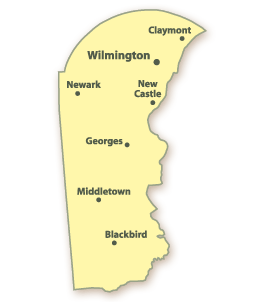
I was working with a 5th grade class on a #mysteryskype to find a class in Delaware. The students already know to search Google for usable maps that show them counties, cities, and roads. They had done this many times before with success. In this particular case, though, they ran into trouble with maps that didn't match data. It made for some very interesting discussions between the students about what city they were trying to find and what questions to ask.

The two maps in question are shown below. The first one is from a real estate listing website and the second one is from a site about the history of Delmarva, a peninsula that includes part of Delaware.
from Weichert


from Delmarva History Online

During our reflection period of the Mystery Skype the students brought up the confusion these two maps caused. It was a perfect time to talk briefly about evaluating websites and the information we find on them. I mentioned that students needed to look at what the maps were trying to show and what the website that hosted them was trying to show.

This incident reminded me again how much we need to help students understand how to evaluate websites for their accuracy and any bias. Informational literacy is a skill we are constantly teaching our students, but are we teaching them how to evaluate their sources critically? I hear many teachers reject Wikipedia as a source, which I vehemently disagree with. But I don't see them teaching their students how to evaluate other websites.

I recently came across a blog post by Aditi Rao on her Teachbytes blog called 11 Hilarious Hoax Sites to Test Website Evaluation. In her post she lists the following sites that can be used to show students that not all information on the web is accurate. The dehydrated water site is my personal favorite.


  1. All About Explorers
  2. Dihydrogen Monoxide Research Division
  3. California’s Velcro Crop Under Challenge
  4. Feline Reactions to Bearded Men
  5. Pacific Northwest Tree Octopus
  6. Aluminum Foil Deflector Beanie
  7. British Stick Insect Foundation
  8. The Jackalope Conspiracy
  9. Buy Dehydrated Water
  10. Republic of Molossia
  11. Dog Island
Kathy Schrock has an awesome website chock full of resources to teach students this critical skill. Her page includes forms for teaching the process, forms students can fill out to evaluate a site, and links to additional sites that can be used to show not everything on the web is real. Check out her page at 

If you have other lessons or tips for teaching this concept to your students, I would love to hear about them in the comments below.

Read More »

Tuesday, May 19, 2015

Formative Assessment Toolbox: Poll Everywhere

Poll Everywhere is a formative response system that teachers can use to solicit feedback, ask open ended questions, and generate polls. Students can respond using any cell phone with text messaging capability or via a simple web form on a tablet or computer. Answers are displayed in real time graph form. 

Educators can create unlimited polls for free, but each poll can have only 40 responses. For larger groups, there are fees involved.  Poll responses can be cleared and reused with other classes. Students do not need any app or account. They simply use their text messaging service or a web form to submit responses.

Not sure what a formative assessment tool like this can do for your classroom? Check out these 5 benefits to using Poll Everywhere in the math classroom posted on the Musing Mathematically blog. 

Here is a great walkthrough video on Poll Everywhere called An Educator's Introduction to Poll Everywhere.


How It Works

Go to http://www.polleverywhere.com and create an account.

Click on the My polls link at the top of the page. Click the Create Poll button in the upper left corner.

Type in the question for your poll and select a poll format. You can choose Multiple Choice, Open Ended, Q&A/Brainstorm, or Clickable Image. Formulate your question and possible answers and click Create.


Open Ended questions: the students respond freely to the poll, with anything they wish. Open-ended poll responses can be displayed in a variety of ways, including a live Word Cloud, ticker tape, text wall, and cluster. Teachers can even use Moderation to manage which responses are shown publicly.

Q&A/Brainstorm questions: The students submit responses, and can anonymously agree or disagree with other responses by upvoting or downvoting.

Clickable Image questions: The students click on a specified or unspecified region of an image to vote. Currently this poll only allows web voting, not SMS texting.

Once your poll is created, you’ll be taken to the poll itself where you can configure it further. Options are on the right side.

The How people can respond section shows you the URL students would go to or how to text their answers.


The Response settings section lets you set how many times a student can respond or make responses anonymous. You can also set a custom thank you message after responding.


Polls can be activated in several ways. 

  • Go to the poll page and click the Activate button on the right. 
  • Take the poll full screen and it’s automatically activated.
  • Embed the poll in a PowerPoint or Keynote and it will be activated when arriving on that slide.

Students respond either through the web form or by texting their answer to the designated number.


Integration Ideas


  • Check for understanding after a difficult lesson
  • Do Now! activity when students enter class (ex: What did you do this weekend? How do you feel about the upcoming test?)
  • Make classroom decisions (ex: What should we name our class pet? How much more time do you need on the paper?)
  • Assign as a homework assignment (ex: Answer the poll by midnight)
  • Keep track of student progress (ex: Text “Done” to the poll when you are finished)

More detailed help, including video tutorials, is available in the Poll Everywhere user guide.

Download the Tech Integration Challenge for Poll Everywhere and see if you are up to the challenge!

Read More »

Monday, May 18, 2015

Formative Assessment Toolbox: Kahoot


Kahoot is a free game-based formative response system. The teacher displays the questions on a screen and students answer them through any web browser on any device (tablet, smartphone, laptop). It is highly engaging and provides immediate feedback to students and formative assessment data for teachers.

Kahoot is a free web based app. Teachers and students create accounts at getkahoot.com. There is no mobile app, but it is optimized for mobile devices. Shortcuts can be created on your device’s home screen. Use https://create.kahoot.it/ to create Kahoots, and https://kahoot.it/ to join and play a game.


How It Works


  1. Teachers create a free account at http://www.getkahoot.com.
  2.  Choose which type of Kahoot to create.

  1.  Type in a name for the Kahoot and click Go.

  1.  Type in the question in the Question box. 
  2.  Choose whether to include points and enter a time limit for the question.
  3. Add an image or video. Both are optional.
  4. Enter the answers and click the Incorrect button to toggle on the right answer.
  5. On the Settings tab choose a language, privacy settings, and an audience.  Public means others on the web can find and use your Kahoot.  Private means only you and those you share with, can use the Kahoot.
  6. Add a cover image, (optional).
  7. To launch the Kahoot, click Play next to it. There are a few settings that can be configured at launch.
  8. Students go to http://kahoot.it, enter the Game-pin, create a nickname, and wait for the instructor to start the game.


Integration Ideas


  • Identify images.
  • Vocabulary practice.
  • Reading comprehension - after reading a story or article, assess how much students remembered.
  • Introduce a new concept or topic.
  • Connect with another classroom and use a screen sharing app such as Skype to play a game of Kahoot.
  • Create a poll to survey class interest on a topic.
  • Have students create their own Kahoot account and create a Kahoot for a project they are working on.


Resources

You can find out more about Kahoot by reading the Getting Started Guide or by downloading my Technology Integration Challenge for Kahoot.

Read More »

Monday, March 23, 2015

CommonLit: enriching clasroom discussions

I recently read about a new website that has a lot of great potential for enriching classroom discussions. CommonLit is a site that creates thematic discussion questions to use with upper elementary and secondary students. These questions are paired with interesting texts that are free to download.

Here's a basic rundown of how it works. As a teacher you select a discussion theme such as America, friendship, or growing up.


You then select one of several suggested discussion questions. For example, I chose the theme Growing Up, which offered two questions: Should we value our youth? and What does it mean to be grown up?


This brings up a list of grade levels that are stocked with various authentic passages. These passages are presented as downloadable PDFs that can be shared with students electronically or paper. Passages come from various authentic sources, such as excerpts from books, speeches, and video transcripts. More text-based and discussion questions are included at the end of the PDF.

The website is relatively new and has only a limited number of themes, questions, and texts. However, new ones are being added all the time. This is a great resource to help start classroom discussions based on specific texts. Check it out and let me know what you think in the comments!

Read More »

Tuesday, February 10, 2015

Cool and Useful Website: TTribune

I recently posted about the Newsela website where students can read informational texts. I came across another awesome site produced by the Smithsonian Institute. It's a actually a collection of 4 websites that also has current news articles on varying Lexile levels.

TTribune is a collection of free websites sponsored by the Smithsonian Institute for use by K-12 teachers and students. Teen Tribune (grades 9-12), TweenTribune (grades 5-8), and TTJunior (grades K-4) consist of daily news stories that include text, photos, graphics, and audio/visual materials. Students can leave moderated comments on any of the teacher selected stories or take quizzes for reading comprehension. There's also a Spanish version of the site.

The TTTribune sites are free. Teachers sign up for free at tweentribune.com/join. Teachers manually create student accounts, which includes a username and password.

Setup

Teachers create an account http://tweentribune.com/join. The site will automatically create 9 classes, which can be renamed.

Students are manually added to each class by the teacher and the system assigns a username and password. The username and password can then be edited/changed for each student by the teacher.

Create an Assignment 

From the home page of the site teachers can browse through the articles. When you find an article you want students to read, click the Assign link at the bottom of each article. From the pop-up window select the class(es) you want to assign it to.


Students can also choose to browse through the available articles and select an article they are interested in and comment on it.

Comments do not appear on articles until they have been approved by the teacher. Click the Comments awaiting approval link from the Teacher menu. This screen can also be used to leave feedback to each student.

Each article has an accompanying quiz that can be used to assess student understanding of the article. There is also a Daily Quiz where students might have to search through several articles to find the answer.


Daily Photos give students the opportunity to view news photos and leave a comment. Captions for the photos are hidden until students post a comment, at which time they can edit their comment.

Student View

When students log in, they will be redirected automatically to a page containing links to the stories you assigned, any message you added to assigned stories, instructions you posted via “Create instructions for your students” and feedback you posted on their comments.

Integration Ideas


  • Pick a controversial story and ask students to post a persuasive argument for their opinion.
  • Ask students to find a comment they disagree with, then ask them to post facts that make an effective, opposing argument.
  • Ask every student to blog on a particular story, then use their responses as the basis for classroom discussion.
  • Ask students to post a summary of the day's top stories to demonstrate that they understand.
  • Ask teams of students to present a "newscast" based on the stories they like best.

The site also has a list of great lesson plans and integration ideas. These lessons can be used over and over because the stories are constantly changing and the answers will be different each time.

Download my Tech Integration Challenge for Newsela and see if you are up to the challenge!
Read More »

Cool and Useful Website: ActivelyLearn.com

I recently became aware of ActivelyLearn.com at the Clark County School District Blended Learning Mini-Conference at Valley HS. I attended a session by @chclteteacher and @weberswords who showed how easy the site is to use to practice close reading skills. Two teachers from one of my schools attended the same session and decided they wanted to share the site with the entire school staff. They asked me, their Digital Learning Coach, to demo the site at our upcoming Staff Development Day. So this week I've been learning everything I can about Actively Learn.

ActivelyLearn.com is a website that lets teachers create reading assignments that have stopping points throughout the text. At these stopping points, teachers can embed questions, notes and videos directly to the text. Students must think and write before moving ahead in the text. Teachers can also embed additional content to enrich the text and to connect the text more closely to what students find compelling.

Watch this 2 minute video to get an idea of what ActivelyLearn can do.

Actively Learn is a free website. A Pro version is available with additional features, such as sharing assignments within a school and centralized viewing of student progress within the school. An email address is needed for teacher signup, but not for students.

Setup

Click View Classes to create and manage your classes. You will be given a class code. Students go to http://www.activelylearn.com/signup and enter the class code to create their account. An email address is not required for students.

Create an Assignment

  1. Click Create Assignments, then Add Content. You can search for articles in the Catalog or add your own text through a URL to an article or upload a PDF. Items in the Catalog can be filtered by grade level (Lexile) or category (subject).
  1. Embed your instruction into the text: highlight the text and insert a question, note, or link to image or video. Inserting a question will let you select a standard to assign to that question. Questions can be either short answer or multiple choice. Notes help provide more information to the reader. Notes can be tagged with text elements. Links can take the reader to other sites for more information.


  1. To assign the text to a class by click Create Assignments, then Assign to Classes, and click Next. In the pop up select the class(es) and click Assign.

Student Work

Students begin working on assignments by first selecting a class and choosing the assignment. They can begin reading, taking notes, answering questions, and defining words.

Download my Tech Integration Challenge for Actively Learn and see if you are up to the challenge!

Read More »